Building the Springhead Plugin
Installing Springhead
To use the Springhead plugin, you need to install Springhead. Detailed instructions are available on the Springhead homepage.
The operation of SpringHeadPlugin has currently only been confirmed on Windows.
Obtaining the Source Code
First, obtain the source code. Springhead’s source code is managed on GitHub. To get the latest version, you can navigate through the download link from the Springhead homepage. You can download from there, or you can obtain the source by executing the following command:
git clone https://github.com/sprphys/Springhead.git
Building on Windows
In Springhead/core/src, there is a Visual Studio 2015 solution file Springhead14.0.sln, so open this.
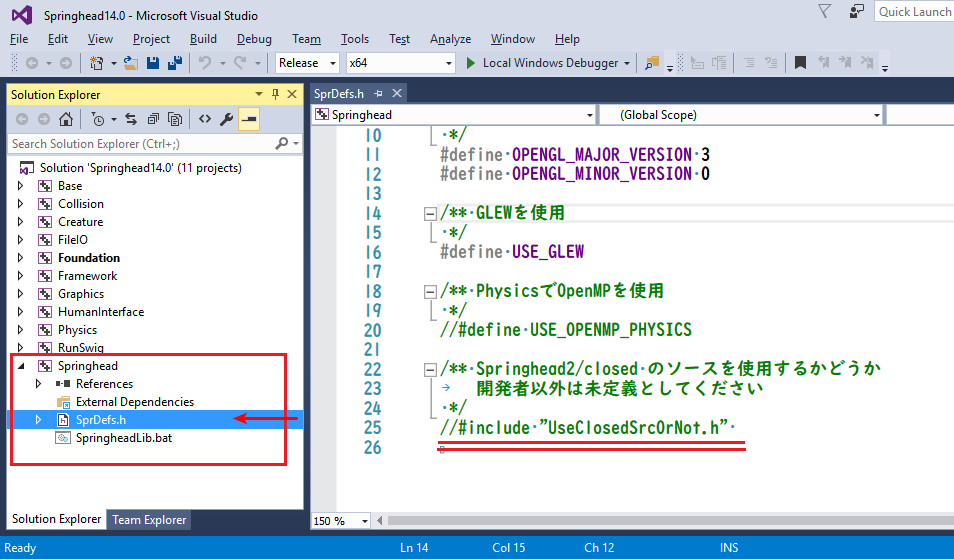
As shown in the figure, click on SprDefs.h within Springhead in the Solution Explorer to open it.
The editor will open, so comment out #include “UseClosedSrcOrNot.h” on the last line and save the file.
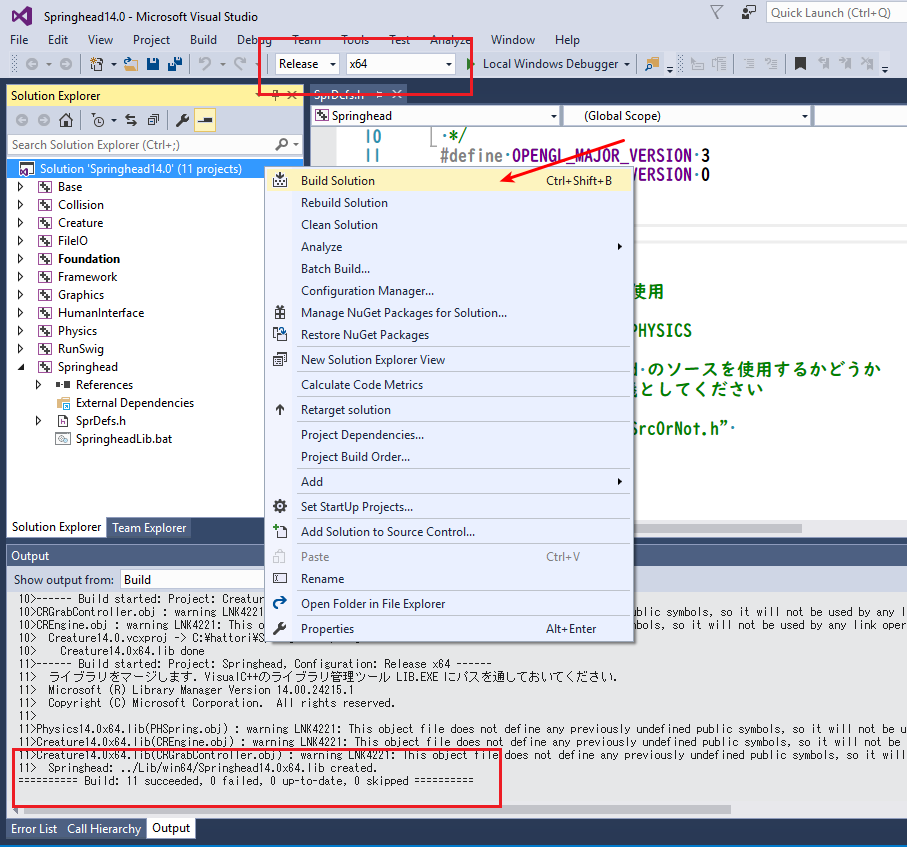
Set the red-boxed area in the figure to Release, x64, and right-click on Solution`Springhead14.0`. A pull-down menu will appear, so select Build Solution.
When the build is complete and Springhead: ../Lib/win64/Springhead14.0x64.lib created. is displayed, it is OK.
Building the Plugin
When building Choreonoid, in the CMake configuration, set the BUILD_SPRINGHEAD_PLUGIN item to “ON” and specify the path to Springhead\core in SPRINGHEAD_DIR.
Running the Simulation
Before starting Choreonoid, set the path to the library (in the above case, Springhead\core\bin\win64) in the environment variable Path. You can set this by opening the Control Panel and configuring it through the GUI, or you can do it from the command prompt using the Set command.
Simulation using the Springhead plugin is performed in the same way as using other physics simulators. It becomes executable by creating a simulator item “SpringheadSimulator” and placing it as a child item of the world item.