Launch Methods
Launching from Command Line
To launch Choreonoid using command input from a terminal, which is common on operating systems like Linux, you enter the command “choreonoid”, which is the executable file for Choreonoid. (On Windows, similar operations are possible using a system tool called “Command Prompt”.)
This command is located in the “bin” directory of the installation destination. If the path is set to that directory, you can simply launch it by typing
choreonoid
Alternatively, when you build Choreonoid from source, the executable file is first generated in the bin directory of the build directory. You can also directly execute that executable file. For example, if you performed the build in a build directory called “build” within the source directory, you can launch Choreonoid by entering the following in the terminal:
cd [source directory]
./build/bin/choreonoid
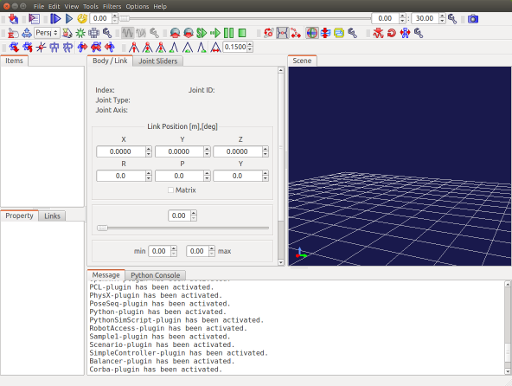
When launched, Choreonoid’s main window as shown below will be displayed.
Launching from File Manager
On operating systems like Windows, the command line operations described above may not be very common. In such cases, you can also run Choreonoid from file manager software like Windows Explorer. Open the Choreonoid installation folder with the file manager, and launch it by double-clicking the executable file in the bin directory (on Linux it’s “choreonoid”, on Windows it’s “choreonoid.exe”).
Specifying Project Files with Command Line Arguments
For “projects” described in Projects and Items, it’s also possible to have them loaded when Choreonoid starts up. To do this, you specify a “project file” as a command line argument when launching Choreonoid. For example, to load a project file called “project1.cnoid” in the current directory, you can specify it as follows:
choreonoid project1.cnoid
If you’re familiar with the command line, this method allows you to efficiently load project files.
Also, by using the OS file association feature to associate files with the “.cnoid” extension with the choreonoid executable file, it becomes possible to launch Choreonoid with that project file simply by double-clicking the project file from the file manager. The Windows installer performs such associations during installation.
Launch Mode without Showing the Window
When you launch Choreonoid with the command line option --headless, it starts without showing the main window. This form of running a program without showing its GUI is generally called “headless mode” or “headless execution”.
choreonoid --headless project1.cnoid
In this mode, the text output to the message view is put to the standard output, so you can check the operation status on the terminal. Also, the launched Choreonoid can be terminated by entering Ctrl+C on the terminal.
Note that on Unix-like operating systems such as Linux, when Choreonoid is launched in an environment where no window system is available (an environment where neither the DISPLAY nor WAYLAND_DISPLAY environment variable is set), it automatically switches to this mode even without this option.
This mode is usually used in combination with Python scripts for purposes such as automatically performing the batch execution of simulations. For the specific ways to utilize it, refer to the Headless Execution without Showing the Window section in Executing Scripts from the Command Line of the Python Scripting chapter.
List of Command Line Options
The main command line options available for the choreonoid command are summarized below.
Note that when files are directly specified as command line arguments, they are loaded or executed according to their types, such as project files (.cnoid), body files (.body), and Python scripts (.py).
Option |
Function |
|---|---|
-h, –help |
Shows the list of the options and exits. |
–project file |
Loads a project file. |
–body file |
Loads a body file. |
–python file (short form -p) |
Executes a Python script at startup. (See Executing Scripts from the Command Line.) |
–python-item file |
Loads a Python script as an item. (See Executing Scripts from the Command Line.) |
–start-simulation |
Automatically starts the simulation at startup. |
–start-playback |
Automatically starts the animation playback at startup. |
–headless |
Runs Choreonoid without showing windows. This includes the specification of |
–batch |
Exits the application when all the processing that runs automatically has finished. This includes the specification of |
–non-interactive |
Runs Choreonoid in the mode that does not expect any interaction with the user. The text output to the message view is also output to the standard output, and no dialog for confirmation is shown. |
–list-qt-styles |
Outputs the list of the available Qt styles. |
–path-variable name=path |
Adds a path variable that can be used in the path descriptions of project files and so on. |
–add-plugin-dir-as-prefix directory |
Adds a plugin directory as an install path prefix. |
In addition to these, some options may be added by the loaded plugins. The list of the options available in your environment can be checked with
choreonoid --help
Note
The --headless option was named --no-window in version 2.5 and earlier. --no-window can still be used, but use --headless when you write a new description.
Note
The --test-mode and --quit options have been removed in version 2.6 and later. Their functions have been replaced with --batch and --non-interactive. If you have been using --test-mode, replace it with --batch. In addition to the output to the standard output that --test-mode performed, --batch also exits the application when the processing has finished. If a removed option is specified, a message about it is output and the application exits.